Best Free Transcription Software in 2026: 8 Useful Tools
Need audio turned into text for free? Compare 8 transcription tools for meetings, interviews, lectures and voice notes, and each free plan's real limits.

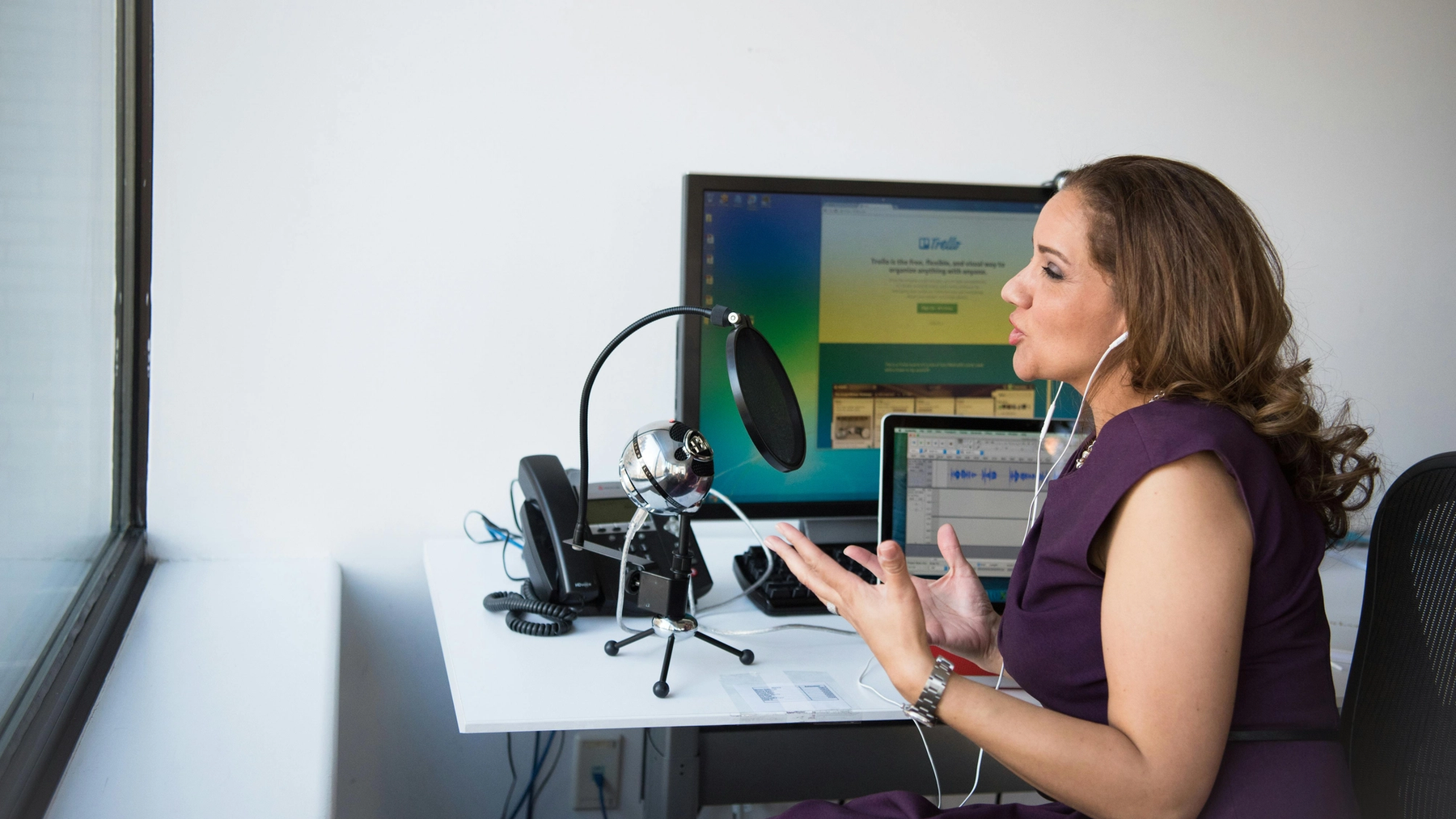
The best free transcription software depends on what you're transcribing. For video calls, Fathom transcribes unlimited meetings for free. For audio files on your own computer, Whisper is free and open source. On a phone, Voice Memos (iPhone) and Live Transcribe (Android) are already built in. To type a transcript yourself, use oTranscribe.
You remember someone making the point you wanted to quote. Finding it again means dragging the recording back, listening, dragging it back again, until you've lost your place in whatever you were writing. A transcript fixes that. My view: the best free tool is the one that matches where your audio already lives, and the free plan's fine print matters more than the accuracy claims on the homepage. Here are eight free tools, what each free plan actually includes, where your audio goes with each one, how to get a cleaner transcript out of any of them, and how I'd pick.
Free transcription software compared
Every limit here comes from the company's own pricing or help page, linked in each section below. Free plans change, so check before you rely on one for a big project.
Tool | Best for | What's free | Works on | Transcribes files you upload? |
|---|---|---|---|---|
Fathom | Video calls | Unlimited recordings and transcripts in 38 languages | Zoom, Google Meet, Microsoft Teams | No, live meetings only |
Otter | Short calls and conversations | 300 minutes a month, 30 minutes per conversation | Web, iPhone, Android, video calls | Yes, three files in total |
Fireflies | A searchable team archive | Unlimited transcription of auto-joined meetings, 400 minutes of storage | Video calls, web, desktop, mobile | Yes, using credits |
Apple Voice Memos | Voice notes and interviews on iPhone | Built in | iPhone 12 or later | No, its own recordings |
Google Live Transcribe | Following a conversation live | Built in or free from Google Play | Android | No, live speech only |
Google Docs voice typing | Dictating a first draft | Included in Google Docs | Chrome, Edge or Safari | No, your microphone only |
Whisper | Folders of audio files, offline | Free and open source | Your own computer | Yes, no limit |
oTranscribe | Typing a transcript yourself | Free and open source | Desktop browser | It plays the file; you type |
The 8 best free transcription tools in 2026
1. Fathom: best for transcribing video calls
If most of what you need transcribed happens on Zoom, Google Meet or Teams, start here. Fathom's Free vs. Premium page lists unlimited recordings, storage and transcriptions in 38 languages on the free plan. That means you don't have to ration minutes across a busy week of calls.
Two catches. The free plan gets advanced AI summaries for only your first five calls each month, and it shows an in-meeting banner, which Premium lets you remove. More important for transcription: Fathom doesn't accept uploaded recordings. It only transcribes live meetings, so it's no help with an interview you recorded last week.
Picture Greg, an account manager at a Chicago ad agency with a dozen clients and back-to-back status calls on Zoom and Teams. For him, Fathom is the obvious first try: every call gets a transcript and he never has to ration minutes. For the client focus group he recorded on his phone in a conference room, he'll need something else on this list.
2. Otter: best for short conversations, in person or online
Otter works on the web, on iPhone and Android, and inside Zoom, Teams and Google Meet, according to Otter's pricing page. That makes it handy when some of your conversations happen in a room and some on a call. It transcribes English, Spanish, French, German, Japanese and Chinese.
The free Basic plan is where to read closely. Otter's help center lists 300 minutes a month, but only 30 minutes per conversation, plus three file imports for the life of the account and access to your 25 most recent conversations. Say Kayla, a junior at Ohio State, records her 55-minute Tuesday economics lecture: she'll only see the first 30 minutes of the transcript, even with minutes left over. For short check-ins and quick interviews, it's a comfortable fit, and Otter's pricing page lists text export (as .txt) on the free plan, so you can take your transcript with you.
3. Fireflies: best for a team archive of meetings
Fireflies is built for meetings you'll come back to as a group, with search, comments and shared channels. Its Free plan guide says turning on auto-join gives you unlimited transcription of eligible meetings, in more than 100 languages.
The limits are elsewhere. Storage is capped at 400 minutes, summaries and uploaded files use credits, and downloading transcripts requires a paid plan. So it works well if the transcripts can stay in Fireflies. If you need to download every interview and edit it somewhere else, look at another tool.
4. Apple Voice Memos: best free option on iPhone
Before you install anything, check Voice Memos. Apple's guide says it can transcribe recordings while you record or afterward, on iPhone 12 or later, in English, Spanish, Portuguese, Italian, French, German, Japanese, Korean and Chinese. It isn't available in every country or region.
- Open Voice Memos and tap the recording you want.
- Open the recording's options menu.
- Choose Copy Transcript to copy the whole thing, or View Transcript to select part of it.
- Paste it into a note, email or document.
You can also search your recordings by what was said, which is the feature I'd use most. Say Megan, who runs a small design studio in Denver, records a voice memo in the car right after a walkthrough with a restaurant owner, talking through everything he wants on his new menu boards. Three weeks later, searching "menu boards" finds the memo, and the transcript hands her the details she'd otherwise have lost before writing the proposal.
5. Google Live Transcribe: best for following a conversation on Android
Live Transcribe turns speech near your phone into text on the screen as people talk. It's an accessibility tool first, which shows in how well it works for following a conversation in the moment. On a Pixel it's built in; on other Android phones, Google's help page says to find it in settings or download it from Google Play. You can download languages to use it offline.
It's not built for keeping records, though. Transcription history is kept for up to three days and then deleted automatically, so share or copy anything you want to keep before then.
6. Google Docs voice typing: best for dictating a first draft
Sometimes the problem isn't a recording. It's getting your own thoughts onto the page. Voice typing in Google Docs works in the latest versions of Chrome, Edge and Safari, per Google's help page:
- Open a document in Google Docs.
- Click Tools → Voice typing.
- Click the microphone and start talking.
- Click the microphone again when you're done.
I'd use this for the rough first pass: explain the idea out loud as if to a colleague, then edit. It listens to your microphone only, so it won't transcribe an audio file you already have. Say Lauren, a marketing director in Austin, has to write a launch brief by Friday and keeps stalling on the opening. Ten minutes of talking it through in voice typing gives her an ugly, honest draft, which is much easier to fix than a blank page.
7. Whisper: best for transcribing audio files for free, offline
If you have a folder of recordings and don't want monthly limits, Whisper is the answer. It's OpenAI's open-source speech recognition model, released under the MIT license, and you run it on your own computer, so your audio doesn't go to a hosted service. The Whisper repository covers setup and the different model sizes.
The catch is setup. You install it with Python and need the command-line tool ffmpeg; bigger models need more memory and run slower. Once it's installed, transcribing a file is one command:
whisper interview.mp3 --model turboBy default, Whisper writes several files at once, including plain text and SRT and VTT caption files, according to its command-line options. That's handy for video captions. What you won't get is speaker names: the output is the words and their timestamps, not who said them, so for a two-person interview you'll be adding "Q:" and "A:" yourself.
If you've never used a terminal, the setup may take longer than the transcription you need today. If you transcribe often, it's worth an afternoon.
8. oTranscribe: best for typing a transcript yourself
Sometimes the wording is the whole point, and you want to listen to every word. oTranscribe puts an audio player and a text editor in one browser window, with keyboard shortcuts to pause and rewind and interactive timestamps. It doesn't transcribe anything automatically.
What I like: it says your audio and transcript never leave your computer, it saves your work to the browser every second, and you can export to Markdown, plain text or Google Docs. It works on desktop computers only.
How to choose free transcription software
Start with where the audio comes from. That rules out most of the list straight away.
Your audio is… | Start with | Why |
|---|---|---|
A Zoom, Meet or Teams call happening now | Fathom | Unlimited free transcripts of live meetings |
A file you already have | Whisper, or Otter for a few short files | Whisper has no limits; Otter allows three imports |
A voice note or interview on your iPhone | Voice Memos | Already on your phone, transcribes as you record |
A conversation you need to follow right now | Live Transcribe | Text appears as people talk |
Your own voice, for a draft | Google Docs voice typing | Words go straight into the document |
An interview where every word matters | oTranscribe | You type it, with the audio controls at hand |
What to do with the transcript
For lectures and study notes
Keep the transcript beside your own notes, and use it to find the explanation you missed. Then rewrite that idea in your own words. A wall of text is almost as hard to revise from as an hour of audio, so add a few headings as you go. Here's what that looks like for Kayla, taking a raw stretch of her economics lecture and turning it into something she can study from:
so the um the thing to remember about price elasticity is it's not the same as the slope right, people mix this up every semester, a steep curve doesn't mean inelastic necessarily because it depends where you are on the curve, so like at the top of a linear demand curve demand is elastic and at the bottom it's inelastic, and this will be on the midterm, the midpoint formula specificallyPrice elasticity (Tue lecture, ~minute 22)
- Elasticity is NOT the same as slope.
- On a straight-line demand curve: elastic near the top, inelastic near the bottom.
- A steep curve doesn't automatically mean inelastic. It depends on where you are on the curve.
- ON THE MIDTERM: the midpoint formula. Practice two problems before Thursday.The notes are a quarter of the length, and the one sentence that matters most ("this will be on the midterm") is no longer buried in the middle. Before Kayla records at all, though, I'd have her check the syllabus or ask the professor. Many courses have a policy on recording lectures.
For interviews and podcasts
Use the transcript to find the passages, then listen to them again before you quote anyone. The sentence before a quote can change its meaning. If you need captions, check that your tool exports a subtitle format your editor accepts: Whisper writes SRT and VTT files, and Otter lists SRT export on its paid plans.
For meetings
Read for decisions, owners and dates. "Could we do Friday?" and "We'll do Friday" look almost the same in a transcript, but they leave a team expecting very different things. Our guide to AI note-taking tools covers turning meetings into notes people can act on.
How to get a cleaner, more accurate transcript
Most transcription mistakes are decided before you press Record. The software can only work with what the microphone hears, and Otter's accuracy tips put it plainly: background noise is generally the biggest factor in inaccurate transcriptions. These habits help with any tool on this list.
Set up the microphone
- Get the microphone close. Otter recommends placing it within three feet of the person speaking and not touching or moving the device while it records. Google gives the same advice for Live Transcribe: hold the phone's microphone near the person you want to capture.
- Match the mic to the room. For several people around a table, Otter suggests an omnidirectional microphone, which picks up sound from every direction. For just your own voice, a unidirectional mic pointed at you keeps the room out.
- Pick the quietest spot you can. A coffee shop, an HVAC vent or a laptop fan right beside the mic will cost you more accuracy than any setting will win back.
- For video calls, capture the call audio rather than a speaker in the room. Otter's accuracy FAQ notes its meeting notetaker records the meeting's internal audio stream instead of relying on your device's microphone and speaker, and the same logic applies to any tool that joins or captures the call directly.
Get clean speaker labels
Speaker labels are where free transcripts most often let you down, and they matter: a quote attributed to the wrong person is worse than no quote. A few things help:
- Let people finish. Otter says it may not be able to separate people speaking over each other, and that overlapping talk can come out inaccurate or not be transcribed at all. In a meeting, a quick "one at a time so the notes come out right" works better than you'd expect.
- Have everyone say their name at the start. It costs ten seconds and makes it far easier to match "Speaker 2" to a real person later.
- Tag speakers in the tool that supports it. Otter's tips say tagging speakers helps it identify them in your conversations, and its pricing page lists speaker identification on the free plan.
- Know which tools don't label speakers. Whisper's output is text and timestamps, not names, so plan to mark who's talking yourself.
Teach it your names and jargon
Names, brands and acronyms are the mistakes that survive a quick read, because the rest of the sentence looks fine. Otter lets you add custom vocabulary for proper names, jargon and acronyms: up to 5 words or phrases on the free plan and 100 names plus 100 other terms on Pro, per its vocabulary help page. If Greg's client is a brand with an unusual spelling, that's the first word I'd add.
Check it like an editor
- Check names, numbers and dates first. "Fifteen" and "fifty" are one syllable apart.
- Go back to the audio when a passage sounds odd, instead of polishing a guess.
- Test with a short recording you know well before you move a whole semester of lectures into a new tool.
Where your audio goes: privacy, tool by tool
Before you upload an interview or point a tool at a client call, it's worth knowing where the recording ends up and whether it helps train the company's AI. Here's what each one says in its own documentation:
Tool | Where it's processed | What the company says about your data |
|---|---|---|
Fathom | Fathom's cloud | Data is stored in the United States. De-identified data is used to improve Fathom's own AI models unless you opt out in My Settings. |
Otter | Otter's cloud (Otter describes itself as entirely cloud-based) | Its privacy policy lists training its own AI on de-identified audio recordings and transcriptions. |
Fireflies | Fireflies' cloud | Its security guide says meeting content is never used to train AI models, and vendors don't store your data after processing. |
Apple Voice Memos | Not stated | Apple's Voice Memos guide doesn't say whether transcription happens on the iPhone or on Apple's servers, so I wouldn't assume either. |
Google Live Transcribe | Not stated, though downloaded languages work offline | Google says audio and transcriptions are encrypted and temporarily stored in the app, and history is deleted after three days (24 hours if history is off). |
Whisper | Your own computer | Nothing is uploaded; the model runs locally. |
oTranscribe | Your browser | It says your audio and transcript never leave your computer. |
My rule of thumb: if the recording includes a client, a patient, a student or anyone who'd be unhappy to read it in someone else's training data, use a tool that runs on your own machine (Whisper or oTranscribe) or one whose policy you've actually read and are comfortable with. And if your company or school has a policy on AI tools, that comes first.
Tell people you're recording
Whatever tool you use, say so before you start. In the US, federal law generally allows a recording when one party to the conversation consents (18 U.S.C. § 2511(2)(d)), but some states require more. California, for example, makes it a crime to record a confidential conversation without the consent of all parties (Penal Code § 632). When Greg interviews a customer in San Diego for a case study, I'd want him to ask on the recording: "Is it OK if I record this so I can quote you accurately?" It's polite, it covers the strictest rule, and the answer is on tape. This isn't legal advice; when in doubt, ask your company's legal team.
If you outgrow the free plan
Free plans run out in predictable places: the per-meeting cap, the number of uploads, or the export button. Here's what the next step up costs, from each company's pricing page:
- Otter Pro: $8.33 per user a month billed annually, with up to 90 minutes per meeting, 1,200 monthly minutes, 10 file imports a month and export to formats including .docx and .srt, per Otter's pricing page. That's the fix for Kayla's 55-minute lectures.
- Fireflies Pro: $10 per seat a month billed annually, adding transcript downloads and 8,000 minutes of storage per seat, per Fireflies' pricing page.
- Fathom Premium: $16 per user a month billed annually ($20 month to month), adding advanced summaries and AI action items, per Fathom's pricing page. Transcription itself is already unlimited on Fathom's free plan, so pay only if you want the extras.
If your recordings are meetings on a Mac
This is where I'd mention Merlin, our app, with the honest caveat that it isn't free transcription, which is why it isn't in the eight. Merlin is a Mac app that records calls from your Mac without a bot joining. The free plan records and plays back meetings, but transcription needs a paid plan. The audio file stays on the Mac that recorded it; on a paid plan, it's sent to a transcription provider, and the transcript and notes are kept on your Merlin account.
On a paid plan, the transcript comes with speaker labels you can rename, the language is detected automatically, and you can click any line to jump to that moment in the audio. Merlin then writes structured notes from the transcript, and you can ask it questions about one meeting or all of them. It doesn't export files; Copy transcript copies the plain text.
From recording to follow-up
Merlin records calls on your Mac, and on a paid plan turns them into speaker-labeled transcripts and notes, then helps with the to-dos that came out of the meeting.
Get MerlinFrequently asked questions
What is the best free transcription software?
It depends on the audio. Fathom is the strongest free option for video calls, Whisper for audio files on your own computer, and Voice Memos or Live Transcribe if you only need your phone.
Is there completely free transcription software with no limits?
Whisper is free, open source and has no usage limits because it runs on your own computer, though it takes some setup. oTranscribe is also free, but you type the transcript yourself.
How do I transcribe a Zoom meeting for free?
Fathom's free plan transcribes unlimited Zoom, Google Meet and Teams meetings. Otter's free plan also works, but only the first 30 minutes of each conversation are transcribed.
Can I transcribe a voice memo on my iPhone?
Yes, on iPhone 12 or later in supported languages. Open the recording in Voice Memos, open its options menu, and choose Copy Transcript.
Can Google Docs transcribe an audio file?
No. Voice typing in Google Docs transcribes what you say into your microphone. For an existing file, use Whisper or a tool that accepts uploads, like Otter.
Is Whisper free to use?
Yes. Whisper is open source under the MIT license and runs on your own computer, so the only cost is the time to set it up and your computer's processing power.